- from the Easy Mode desktop press "ctrl-alt-t" to open the terminal
- at the terminal window, type "sudo apt-get update" at the user prompt and wait for the user prompt to return
- then type "sudo apt-get install ksmserver kicker" and the installation process should start
- once the process is done (you'll know because the user prompt at the terminal will return, close the terminal and restart your Eee. After the restart, you'll still see the usual Easy Mode screen.
- to go to advanced mode, press the power button (or click on the round red button beside the smiley face in your task bar) and you'll see an additional option "Full Desktop" -- click it and your Eee will restart its window manager to the Advanced Mode.
Saturday, December 29, 2007
Erratum: Activating the Eee PC's Advanced Mode
My post on activating the Advanced Mode for the Eee PC has an error. I was not able to type the commands completely so people who followed my instructions may not have successfully activated their advanced desktop. So here's a clearer instruction:

JKKMobile: Internal 3G/HSDPA on the Eee PC!
Wednesday, December 26, 2007
Heads Up: Money Manager Buddi Updated!
Well, when I ran the NoypEee-certified money manager Buddi, it prompted me that there is an update available. The previous version I was running was Buddi 2.6.4.2 but after the update, my Buddi (pun intended) is now Buddi 3.0.0.0! I didn't notice too much difference except that the program is having a hard time recognizing the clicks I make on my accounts to add entries.
Oh, and version 3.0.0.0 doesn't recognize the data file from the previous version but it does have a facility to import those older data files (whew!). Anyway, the newest version of Buddi can still be downloaded here.
Oh, and version 3.0.0.0 doesn't recognize the data file from the previous version but it does have a facility to import those older data files (whew!). Anyway, the newest version of Buddi can still be downloaded here.
My Eee Does MetrobankDirect Online Banking!

This is to dovetail the previous post about my favorite online banking site. MetrobankDirect was originally designed to run exclusively on MS Internet Explorer but recent changes in their system allows non-IE browsers to access and transact with it. This post verifies that MetrobankDirect can now be accessed anywhere using the built-in Mozilla FireFox of the Asus Eee PC! (click on the pic for a larger version).
MyPasswordSafe: Password Manager for Eee
When my favorite online banking site changed their password authentication scheme to accommodate web browsers other than Microsoft's (in)famous Internet Explorer, it prompted me (and I assume other users) to change their passwords. I dutifully changed mine but after a few days, I stupidly forgot my new password! So I had to go to my bank to apply for a new password and now I had to find a way to remember this newer new password.
Thankfully, I stumbled upon a thread at the EeeUser Forums that discussed password managers. They were discussing KeePassX but when I attempted to install it, I always end up with a "segmentation fault" error. Exasperated, I opted to do my own research on the matter and after browsing my Eee's Synaptic Package Manager, I came up with a nifty program called "MyPasswordSafe".

Installing MyPasswordSafe is as straightforward as marking it for installation under Synaptic -- as long as the additional Debian repository is included in it -- and then clicking on the "Apply" button on the menu. If you prefer to use the CLI, here's how it's done:
MyPasswordSafe will be installed at /usr/bin so to run it, open a Terminal window and type in "/usr/bin/MyPasswordSafe". If, like me, you find it useful, you can add it to your advanced mode menu by using the Menu Editor (Application --> System --> Menu Editor). For help an how-to on using MyPasswordSafe, refer to http://www.semanticgap.com/myps/.
Thankfully, I stumbled upon a thread at the EeeUser Forums that discussed password managers. They were discussing KeePassX but when I attempted to install it, I always end up with a "segmentation fault" error. Exasperated, I opted to do my own research on the matter and after browsing my Eee's Synaptic Package Manager, I came up with a nifty program called "MyPasswordSafe".
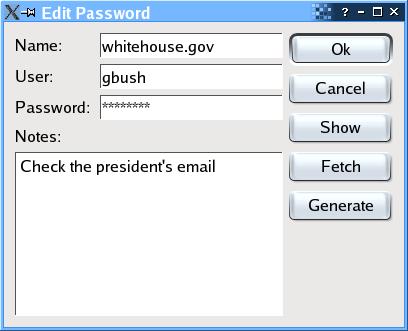
Installing MyPasswordSafe is as straightforward as marking it for installation under Synaptic -- as long as the additional Debian repository is included in it -- and then clicking on the "Apply" button on the menu. If you prefer to use the CLI, here's how it's done:
- Open a new Terminal window
- At the prompt, type in "sudo apt-get install mypasswordsafe"
MyPasswordSafe will be installed at /usr/bin so to run it, open a Terminal window and type in "/usr/bin/MyPasswordSafe". If, like me, you find it useful, you can add it to your advanced mode menu by using the Menu Editor (Application --> System --> Menu Editor). For help an how-to on using MyPasswordSafe, refer to http://www.semanticgap.com/myps/.
Monday, December 24, 2007
HappEee Christmas Everyone...
Saturday, December 22, 2007
FEBE: Restore FireFox Settings After an Eee PC Reinstall
Since I got my Eee PC a couple of weeks ago, I had to restore it to factory defaults several times because I had this compulsion to almost constantly install/uninstall apps that causes it to crap out. Restoring to factory defaults is really easy but the hard part is to restore my settings, especially the customizations I made for FireFox. Following the lead from a post at EeePH, I downloaded and installed FEBE to create a backup of my FireFox settings.
Installation and configuration of FEBE is a no-brainer and even the most novice user should be able to do it, Now I have one less headache should I happen to bork my Xandros install.
Installation and configuration of FEBE is a no-brainer and even the most novice user should be able to do it, Now I have one less headache should I happen to bork my Xandros install.
Subscribe to:
Posts (Atom)